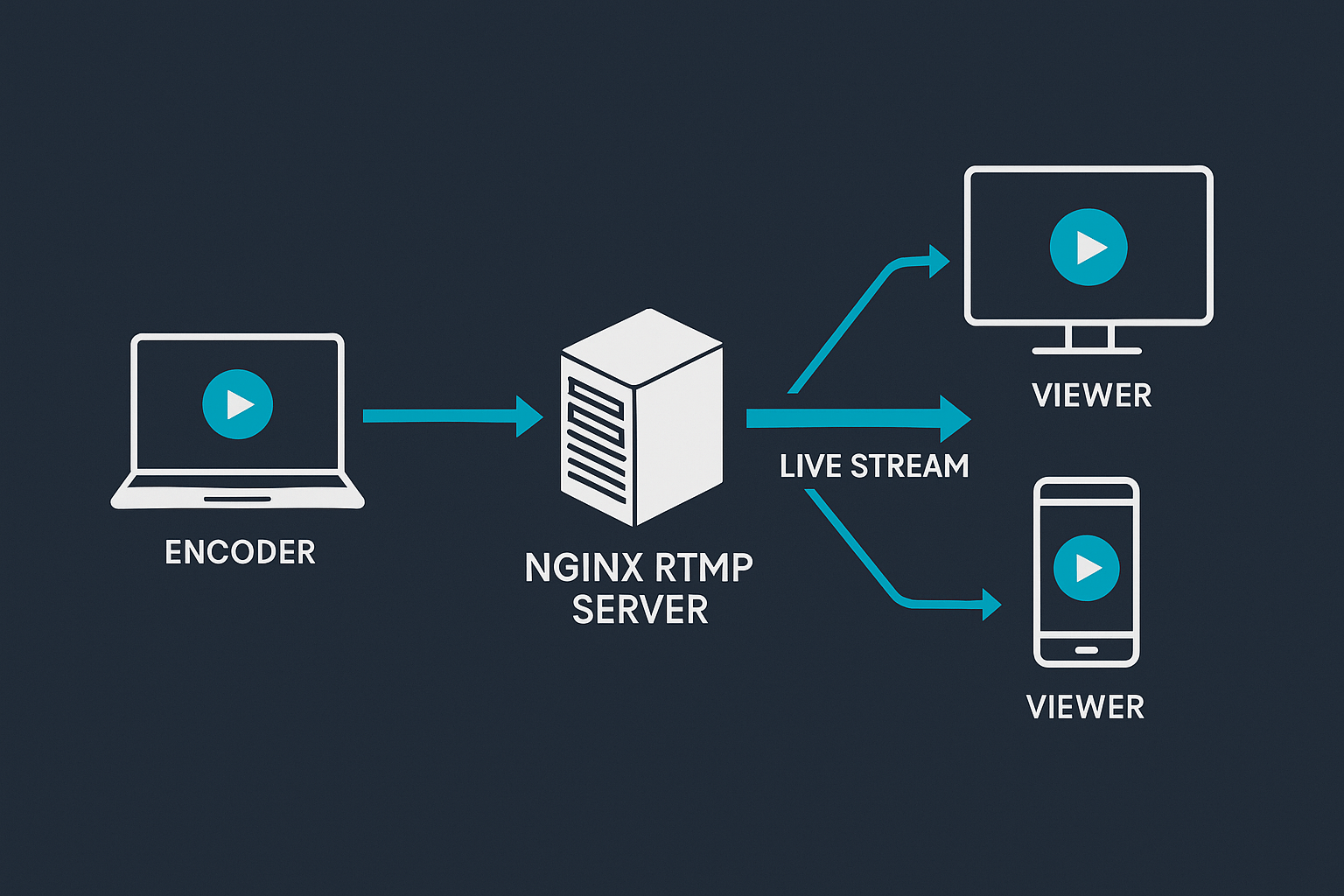


RTMP streaming is often described as “simple,” but behind the scenes it follows a precise workflow. Knowing this flow helps broadcasters make better technical decisions.
How does RTMP streaming work step by step?
The process starts with an encoder such as OBS. The encoder captures video and audio, compresses them, and sends the stream to an RTMP server.
The server then redistributes the stream, either directly or by converting it into formats like HLS for viewer playback.
Each step introduces potential points of failure, from bitrate mismatches to network instability.
Why RTMP remains popular for ingestion
RTMP is lightweight, fast, and well-supported. It handles connection drops gracefully and works reliably even on less-than-perfect networks.
For live production environments, these traits matter more than theoretical efficiency.
Practical optimization tips
Stable RTMP streaming depends on:
- Conservative bitrate selection
- Matching encoder settings to server capacity
- Monitoring CPU and network usage
Small adjustments often produce significant improvements in viewer experience.
RTMP streaming succeeds not because it is new, but because it is dependable.
The Importance of Buffering Strategies
While bitrate is a primary focus, the way a server manages its jitter buffer is what truly defines a professional broadcast. In a dedicated RTMP environment, you have the ability to fine-tune how the server handles slight variances in data arrival. By setting a slight buffer—even just 1 or 2 seconds—the server can smooth out the “micro-stutters” caused by local network congestion at the source. This is the secret behind the “TV-quality” feel of high-end broadcasts; they prioritize a consistent, rhythmic delivery of frames over the absolute lowest possible latency, ensuring the viewer never sees a single frozen frame.
Human-Centric Monitoring and Alerts
Optimization is not a “set it and forget it” task. The most successful broadcasters treat their RTMP server as a living entity that requires active oversight. Modern dedicated setups allow for the implementation of automated monitoring and telemetry. You can configure your server to send instant alerts via Slack, Discord, or Email if the incoming bitrate drops below a certain threshold or if the CPU temperature spikes. This proactive approach allows technical teams to intervene before the audience even notices a problem, shifting the role of the broadcaster from a reactive “firefighter” to a proactive director of a stable digital network.
Final Summary Checklist
To ensure your stream stays optimized, keep this short list in mind:
- Bitrate: Never exceed 80% of your total upload bandwidth.
- Keyframes: Set your encoder to a fixed keyframe interval (usually 2 seconds) for better HLS compatibility.
- Hardware: Ensure your encoder isn’t hitting 100% CPU usage, which causes “encoding overloaded” drops.